Quickstart
Physical actuator over direct USB with Pulsar App (browser)
This is the fastest way to move one physical PULSE actuator without writing code.
What you need
- one securely mounted PULSE actuator;
- a suitable 48 V DC power supply and power cable;
- a USB-A to USB-C cable;
- Chrome or another Chromium-based browser on Linux or Windows.
Read Safety and prerequisites before continuing.
Connect the actuator
- Mount the actuator so it cannot move unexpectedly as a whole.
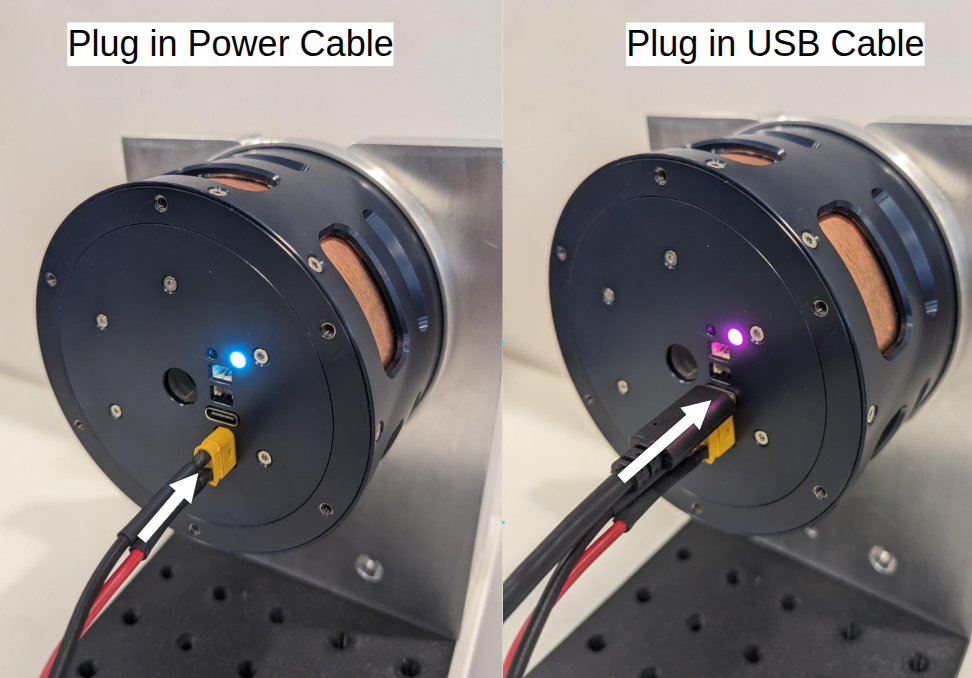
- Connect the power cable and switch on the power supply.
- Confirm that the status LED turns on.
- Connect the actuator directly to the computer by USB.
- Confirm that the LED indicates a USB connection.
Open Pulsar App
- Open https://app.pulsarhri.com/.
- Allow the browser to access the connected serial device.
- Select the actuator in Devices. Use refresh if it is not listed.
Warning
Once connected and enabled, commands can cause immediate motion. Keep people, cables, tools, and loose objects outside the operating area.
Try velocity control
- Select Speed Control.
- Confirm that the setpoint is
0 rad/s. - Press Play.
- Increase the setpoint gradually and observe the actuator and live plot.
- Return the setpoint to zero before changing mode.
Try position control
- Select Position Control.
- Press SET 0 POSITION to use the current output position as zero.
- Press Play while the setpoint is zero.
- Change the position setpoint by a small amount and observe the response.
Change gains and limits only in small increments. A gain that is too high can produce overshoot or unstable motion.